- Select the cells where you want to apply the format.
- On the Home tab in the Number group, click the dialog box launcher to display the Format Cells dialog.
- On the Number tab select Custom in the Category list.
Excel number formats can contain up to four sections of code separated by semicolons. The first section applies to positive numbers, the second to negative numbers, the third to zeros, and the fourth to text. When formatting, the third and fourth are optional. - To specify a format for zeros, you need to add (or change) the third section of the number format code. If there is no format for zeros, add a semi-colon for the third section and then type a dash(es). This tells Excel to display a your defined format in any cell with a value of zero.


Friday, October 1, 2010
Excel 2007: Display Dashes Instead of Zeros
Do you have a spreadsheet that contains a lot of zeros? It's not always easy to read the other numbers when you do. You can accomplish this with a custom number format.


Wednesday, September 15, 2010
How twins are made
Your questions are answered...

Not a fan of babies? How about twin geek kids...

And now for the older geeks...

And let's not forget the Mac geeks...

Tuesday, September 14, 2010
Microsoft Office: Mac 2011 RTM's
Microsoft's Mac Business Unit has released to manufacturing the new Mac Office 2011 suite of applications. If you want a sneak peek, check out this video.
If you just want a good laugh at what could have been, watch this one.
If you just want a good laugh at what could have been, watch this one.
Thursday, September 9, 2010
Office 2010 Migration Guides
Making the jump from Microsoft Office 2003 into 2010? There are some handy migration guides just for you.

Wednesday, September 1, 2010
PowerPoint 2007: Delete all slide notes
Often, I am asked to share my PowerPoint slides. I use the notes section for my own personal information and don't always want to share that with the recipient. Instead of clicking on each slide to delete each note, I can use the Document Inspector to delete all the slide notes in a presentation instantly.
- Click the Office button, point to Prepare, and then click Inspect Document.
- Click Inspect.
- Click Remove All next to Presentation Notes. You can also choose to remove invisible on-slide or off-slide content, personal information, comments, and more.
- Save this version of the presentation separately (be sure not to overwrite your full version), and share it safely.
Monday, August 30, 2010
Access vs. Excel
Here's a question I get asked a lot. When do I use Excel and when do I use Access. Thanks to the Crabby Office Lady, here is your answer.
| When you want to | Use this program | Why you should take Crabby's advice |
| ... deal with a very large amount of data. (If you're a Kennedy, that's thousands of entries). | Access | Access is a handy-dandy organizer, accessing Cape Cod houses full of information in a quick and easy way. A few clicks of the mouse and you can make sense of all those toothy entries. |
| ... manage a fairly small amount of data. | Excel | If you can simplify your life, by all means do it. Because once the big day hits, simplification will go right out the window. Don't use a database when an organized list will do nicely. |
| ... spend less time plugging in the same information again and again, and more time playing around with it. | Access | If you want to make sure all your relations' variables are accounted for, create a relational database. One table can contain their names, and the other tables can contain seating, dietary, and lodging requirements. Each guest probably has more than one requirement, so you need a database that can cross-reference all of them. |
| ... create a very simple list with limited amounts of cross-referencing. | Excel | Why get all tangled up in relationships if you don't have to? (Spoken like a true familial misanthrope.) You have a list of guests in one column, the corresponding "Yes, he's coming" or "No, she's banished" in the next column. Easy as pumpkin pie. |
| ... rely on multiple external databases and run complex queries. | Access | If you need to compare the last decade's worth of information about seating arrangements, dietary preferences, and who ran for Congress in which state, don't even try this in Excel. |
Sunday, August 1, 2010
Word 2007: Convert text to a table or vice versa
When I create a document, I tend to change my mind after it is all done how I want to format it. I used to cringe at the thought of changing text to a table, it was a lot of work, until I learned there was a tool for that.
- Select the text that you want to convert. It should have a common delimiter (separating character) that will convert to columns and rows. Typically, tabs separate columns and line returns separate rows.
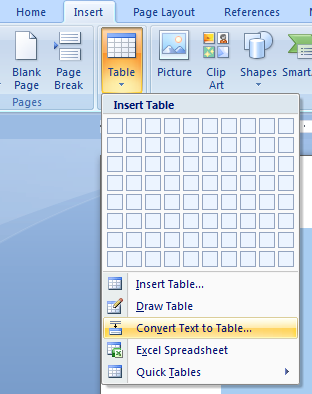
- On the Insert tab, in the Tables group, click Table, and then click Convert Text to Table.
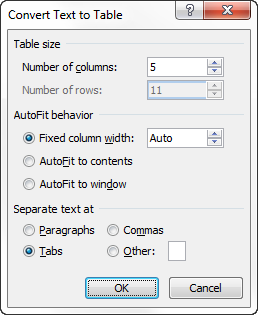
- In the Convert Text to Table dialog box, under Separate text at, click the option for the separator character that is in your text.


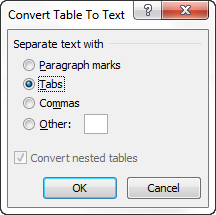
To convert a table to text...
- Select the rows or table that you want to convert to paragraphs.
- Under Table Tools, on the Layout tab, in the Data group, click Convert to Text.

- Under Separate text at, click the option for the separator character that you want to use in place of the column boundaries. Rows are separated with paragraph marks.


Subscribe to:
Posts (Atom)