- Click the Office button, point to Prepare, and then click Inspect Document.
- Click Inspect.
- Click Remove All next to Presentation Notes. You can also choose to remove invisible on-slide or off-slide content, personal information, comments, and more.
- Save this version of the presentation separately (be sure not to overwrite your full version), and share it safely.

Showing posts with label presentations. Show all posts
Showing posts with label presentations. Show all posts
Wednesday, September 1, 2010
PowerPoint 2007: Delete all slide notes
Often, I am asked to share my PowerPoint slides. I use the notes section for my own personal information and don't always want to share that with the recipient. Instead of clicking on each slide to delete each note, I can use the Document Inspector to delete all the slide notes in a presentation instantly.


Thursday, April 1, 2010
PowerPoint 2007: Reuse Slides
I'm lazy. Some prefer the term "efficient" but either way, I want to get it done the easiest way possible. There are many times I already have a PowerPoint presentation with one or more slides I'd like to reuse. Yes, I can go into Slide Sorter view and copy/paste from one presentation to the other, but there is an easier way.
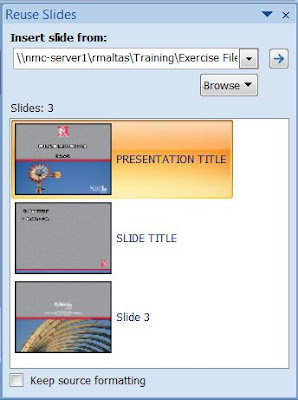
- Open the presentation that you want to add a slide to.
- In the navigation pane that contains the Outline and Slides tabs, click Slides, and then click where you want to add a slide.
- On the Home tab, in the Slides group, click New Slide, and then select Reuse Slides.
- In the Reuse Slides pane, click Open a PowerPoint File.
- In the Browse dialog box, locate and click the presentation file that contains the slide that you want, and then click Open.
- In the Reuse Slides pane, do one of the following:
- To add a single slide, click the slide.
- To add all of the slides, right-click any slide, and then click Insert All Slides


| Share |  Buzz it Buzz it |
Wednesday, January 6, 2010
Use PowerPoint to Create Web-based Training
Here is a presentation that I've given for the ASTD-Lincoln Chapter and have presented for some UNL faculty. I just thought someone else might benefit from it as well. It is using PowerPoint to create web-based training.
Tuesday, October 6, 2009
Free Powerpoint Twitter Tools
A beta version of PowerPoint Twitter Tools is now available for testing from SAP BusinessObjects. The twitter tools allow PowerPoint presenters to see and react to tweets in real-time, embedded directly within their presentations, either as a ticker or refreshable comment page. There are currently three tools:
- PowerPoint Twitter ticker bar
- PowerPoint Twitter feedback slide
- PowerPoint Twitter voting
Tuesday, September 15, 2009
YouTube Videos in PowerPoint
A question I frequently get from people outside of the University is, "My company blocks internet sites such as YouTube. How can I embed a YouTube video into my PowerPoint Presentation?"
There have been a variety of options to use for free and some nice ones to purchase. But I'm all about the "free." When one of my favorite presentations sharing sites, authorSTREAM, announced the authorSTREAM Desktop plugin for PowerPoint, I jumped on it.
It's a simple download and installation to add an authorSTREAM ribbon into PowerPoint 2007. It's so easy to use, you don't even need to read the instructions. There is a button to upload your active presentation into your authorSTREAM account. There is a search box for images and video. It opens a task pane to select from the search results. If you don't find it via the search box, there is a button to insert the video by URL.
I had a presentation I wanted a video in and decided to try it out. authorSTREAM found the YouTube video I wanted from the search. When I clicked to add the video, I got a white box with a black "X" in the middle. It doesn't look like much, but when I ran the presentation, the video appeared in the player window, just as it would as if you embedded it into a website. You can play, pause and view full size. Very seamless.
Personally, I had a small issue after the first time I used it and repairs suggested by the website didn't help. But after I repaired Microsoft Office, it worked again. I attribute the problem to me having Office 2007 and 2010 Technical Preview loaded on my computer at the same time which can cause problems with addins. So, I'm not faulting authorSTREAM for this.
To recap, if you want a simple and FREE way to embed YouTube video into a PowerPoint presentation, I'd suggest the authorSTREAM Desktop.
There have been a variety of options to use for free and some nice ones to purchase. But I'm all about the "free." When one of my favorite presentations sharing sites, authorSTREAM, announced the authorSTREAM Desktop plugin for PowerPoint, I jumped on it.
It's a simple download and installation to add an authorSTREAM ribbon into PowerPoint 2007. It's so easy to use, you don't even need to read the instructions. There is a button to upload your active presentation into your authorSTREAM account. There is a search box for images and video. It opens a task pane to select from the search results. If you don't find it via the search box, there is a button to insert the video by URL.
I had a presentation I wanted a video in and decided to try it out. authorSTREAM found the YouTube video I wanted from the search. When I clicked to add the video, I got a white box with a black "X" in the middle. It doesn't look like much, but when I ran the presentation, the video appeared in the player window, just as it would as if you embedded it into a website. You can play, pause and view full size. Very seamless.
Personally, I had a small issue after the first time I used it and repairs suggested by the website didn't help. But after I repaired Microsoft Office, it worked again. I attribute the problem to me having Office 2007 and 2010 Technical Preview loaded on my computer at the same time which can cause problems with addins. So, I'm not faulting authorSTREAM for this.
To recap, if you want a simple and FREE way to embed YouTube video into a PowerPoint presentation, I'd suggest the authorSTREAM Desktop.
Thursday, July 30, 2009
PowerPoint slide for the Color Weak (Blind)
Color blindness runs in my family. My Great-Grandmother -> Grandfather -> Mother -> Brother and now my son are all color blind. Color blindness is an incorrect description of the disorder. People with color-deficient vision are not blind to color, but instead see it different. Nowadays, optometrists call it color weak, which is a much better description and more accurate. My 7-year-old son hates being called color blind as he is not blind at all.
How all this relates to PowerPoint is that I often think of how a slide will look to a color weak person. I found a nice article that describes how a slide might look different to the different types of color weakness. The article also suggests using the Vischeck website to upload and view your slide to check it's readability for the color weak. But if you don’t want to go to all the trouble, just stick with the basics and keep your slides simple with contrasting text and you’ll have no problem.
Monday, June 29, 2009
Does Downloading PowerPoint Slides Before the Lecture Lead to Better Student Achievement?
It's a question often asked. Do you provide handouts BEFORE or AFTER the presentation? Someone finally did a study and you can read the full 10-page study by Jennjou Chen and Tsui-Fang Lin. If you want the quick answer, before is better. The study concludes that you will have better learning by providing handout before the learning presentation.
Here's the full conclusion of the study's authors.
"This study contributes to the literature by exploring the link between downloading PowerPoint slides before classes and students’ learning outcomes. The effects of using downloaded lecture slides on students’ academic performance are statistically significant across models. Our estimation results have shown that downloading lecture PowerPoint slides before classes improves students’ examination performance by 4.62 percent in the least squares model. In addition, after controlling for individual heterogeneity, downloading lecture PowerPoint slides before classes still enhances students’ examination performance by 3.48 percent. Also, for this group of students, the lecture slides effect has been found to be greater than the average attendance effect. In light of the statistically significant and non-trivial effect of downloading lecture PowerPoint slides before classes on students’ examination performance, we suggest that instructors could help students improve their learning outcomes by supplying lecture PowerPoint slides before classes."
Saturday, May 16, 2009
MVP of PowerPoint does a presentation makeover
MVP, Julie Terber, does a case study to make over a presentation for a law student to make her presentation better using Microsoft PowerPoint.
Monday, May 4, 2009
Rules for borrowing images from the web
After teaching a PowerPoint session the other day, a student asked, "You suggest good presentation design use lots of images and you showed us how to search for them on the web but, how do I know when I need permission or not to use them?"
Wow, great question! It's an area that can have a lot of gray area depending on it's use. I found this article that give a really good explanation for the rules of Borrowing Images from the Web: An FAQ to know when you need to ask permission and when you don't.
Wow, great question! It's an area that can have a lot of gray area depending on it's use. I found this article that give a really good explanation for the rules of Borrowing Images from the Web: An FAQ to know when you need to ask permission and when you don't.
Thursday, February 12, 2009
Trends for PowerPoint Design in 2009
If you want to know what some of the new thoughts are for PowerPoint presentation design for 2009, you've come to the right place (or will soon after you click the link). Here is a list of MANY blog posts with their thoughts on the matter. A big thank you to Oliva Mitchell for compiling this list. My favorite is 10 crazy things to try with your PowerPoint presentation in 2009.
Thursday, February 5, 2009
Presentation Help
I like PowerPoint. I really do. I just hate people who abuse it. Are you looking for some good tips on good presentation design? Check out Big Dog, Little Dog: Presentations blog post. The part I relate to the most is 9 ways to edit your presentation. Most of the items mentioned are what I find to be the main causes of "Death by PowerPoint."
Friday, October 17, 2008
ARTICLE: Add a popup window to a PowerPoint slide
Date: October 12th, 2008
Author: Susan Harkin, TechRepublic.com
"Sometimes you want to display additional information that’s not a permanent element on a slide — similar to a popup window. In other words, the information is hidden until you want to display it. For instance, you might want to display quarterly bonuses to build excitement. Or you might want to share a contact phone number or e-mail address if asked. There’s no built-in feature that does this, but you can still get PowerPoint to display a pseudo popup window by adding a trigger that displays a callout." Read the full article...
Author: Susan Harkin, TechRepublic.com
"Sometimes you want to display additional information that’s not a permanent element on a slide — similar to a popup window. In other words, the information is hidden until you want to display it. For instance, you might want to display quarterly bonuses to build excitement. Or you might want to share a contact phone number or e-mail address if asked. There’s no built-in feature that does this, but you can still get PowerPoint to display a pseudo popup window by adding a trigger that displays a callout." Read the full article...
Subscribe to:
Posts (Atom)