Yes, I know I have a warped sense of humor, but this is just funny.

Friday, April 17, 2009


Tuesday, April 7, 2009
The Office Ribbon Demystified
Ever wonder, "why did they get rid of menus and toolbars and turn it into a ribbon?" You're not alone. So many people have asked this question, Microsoft created a video to explain.
Ribbons tie things together. In this instance, the ribbon ties together related tasks. You can also think of each ribbon as a desk caddy. Each with its own slots for related items, such as paper clips, rubber bands, etc. Like things are kept together in a slot and all tied together with a ribbon. D'oh! You put it that way and it makes sense! I just thought Microsoft was trying to make the changes sound "pretty."
If you have about 75 minutes to spare, watch "The Story of the Ribbon" Windows Movie File. I have a whole new appreciation for the wonderfulness of the Ribbon.
Ribbons tie things together. In this instance, the ribbon ties together related tasks. You can also think of each ribbon as a desk caddy. Each with its own slots for related items, such as paper clips, rubber bands, etc. Like things are kept together in a slot and all tied together with a ribbon. D'oh! You put it that way and it makes sense! I just thought Microsoft was trying to make the changes sound "pretty."
If you have about 75 minutes to spare, watch "The Story of the Ribbon" Windows Movie File. I have a whole new appreciation for the wonderfulness of the Ribbon.
Wednesday, April 1, 2009
Access 2007: Creating a New Report
Microsoft Office Access 2007 helps you make sense of complex information by offering easy-to-use interactive design tools that you can use to quickly create rich reports that display sorted, filtered, and grouped information. In addition to the traditional Report Designer (Design view), Office Access 2007 introduces a Layout view, so you can look at your data while you’re authoring the report.
To create a report:
To create a report:
- Open, or select in the navigation pane, a table, a form, or a query.
- On the Create tab, in the Reports section, click Report. Access automatically includes all the fields in the object selected and opens the report in Layout view.
Monday, March 30, 2009
Introduce Your Possee in a Presentation
We are all vain and like to see our face or our friends' faces. Take a look at Twitter Mosaic or the pictures of friends in Facebook or MySpace. You can do a professional version of this in your PowerPoint presentations. Here's an example...
Uploaded on authorSTREAM by ranellem
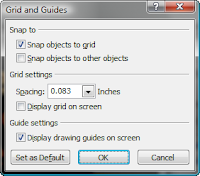 First, I find it easier to break the slide up into parts with a grid. You can turn on the default guides or make adjustments for the number of pictures you have. I right-clicked a blank area of my screen in PowerPoint 2007 for the context menu and selected Grid and guides... I chose to display the drawing guides. You'll get guides for a vertical and horizontal center. Hold [Ctrl] to drag a copy of the guide to a new location. Once I had my custom guides, I was ready to add the pictures.
Uploaded on authorSTREAM by ranellem
 First, I find it easier to break the slide up into parts with a grid. You can turn on the default guides or make adjustments for the number of pictures you have. I right-clicked a blank area of my screen in PowerPoint 2007 for the context menu and selected Grid and guides... I chose to display the drawing guides. You'll get guides for a vertical and horizontal center. Hold [Ctrl] to drag a copy of the guide to a new location. Once I had my custom guides, I was ready to add the pictures.
- Insert the first picture. Size and/or crop the picture to fit the first box. Continue adding the remaining pictures. You'll see in my example that I only had 10 headshots, so filled the other two grids with text.
- Apply an appropriate animation to the first headshot. I chose the Wipe animation. Be sure to modify the start of the animation to After Previous. In necessary, you can also change the direction of the animation. Continue for the remaining headshots. I chose to have them randomly appear, but you can do it in order if you prefer.
Tuesday, March 24, 2009
Celebrating Ada Lovelace Day
Ada Lovelace Day is an international day of blogging to draw attention to women excelling in technology. My pick for this year is the Crabby Office Lady. If you haven't read her blog yet, you must. She's a great resource for me and a fun read. Not your typical tech-blogger with a lot of tech talk. She presents information, good and bad, in a very fun way. I always learn something from her when I read her posts. Even though she writes as the Crabby Office Lady, her real name is Annik Stahl.
Monday, March 16, 2009
#1 Most read article online at Office.Microsoft.com, two versions running
#1 Most read article online at Office.Microsoft.com is "Turn on or off automatic bullets or numbering in Word 2007." I've kept an eye on this for a while, and back in the Office 2003 days, that was still the most read article online. It's probably the most asked question of me, too.
Wednesday, March 4, 2009
ARTICLE: Microsoft's 2019 scenario has everything but Windows
"Microsoft's 2019 is the latest entry in the genre of future product dramatization videos. There's a five-minute version, but I recommend the tightly-edited two minute excerpt below.
The imaginative videos were created by Microsoft Office Labs, a group inside the company that "tests ideas by building prototypes and gathering usage data." At the end, a related video list contains longer versions of each scene -- retail, manufacturing, education, health care and more." [Read the full article...]
The imaginative videos were created by Microsoft Office Labs, a group inside the company that "tests ideas by building prototypes and gathering usage data." At the end, a related video list contains longer versions of each scene -- retail, manufacturing, education, health care and more." [Read the full article...]
Subscribe to:
Posts (Atom)